# Bootstrap II 👀👀
Hey everyone,
Let's get into the next part of Bootstrap!
We're going to learn about icons, alerts, tables and jumbotrons.
I'm sure you're as excited as I am!!
Let's dive in:
Starting with:
I. Icons
what are icons?
Icons are images used to help guide users when navigating a website. For example the pointer.
We get icons using the fa-fa href="https://cdnjs.cloudflare.com/ajax/libs/font-awesome/4.7.0/css/font-awesome.min.css"II. Alert
Alert is a class used to give an alert to the user.
Alerts are created with the .alert class , followed by one of the contextual classes .alert-success, .alert-info, .alert-warning, .alert-danger, .alert-primary, .alert-secondary, .alert-light or .alert-dark
III. Table
The .table class adds basic styling to a table.
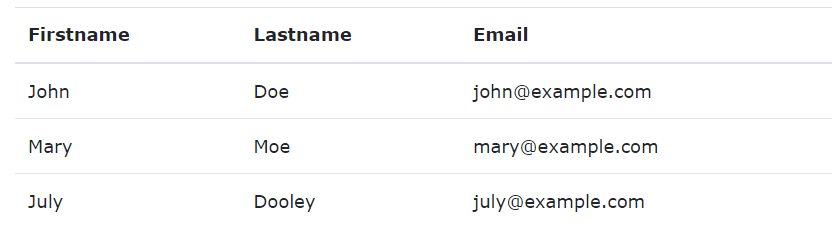
The .table-striped class adds zebra-stripes to a table
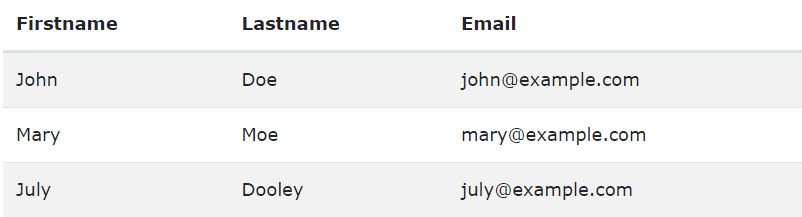
The .table-bordered class adds borders on all sides of the table and cells
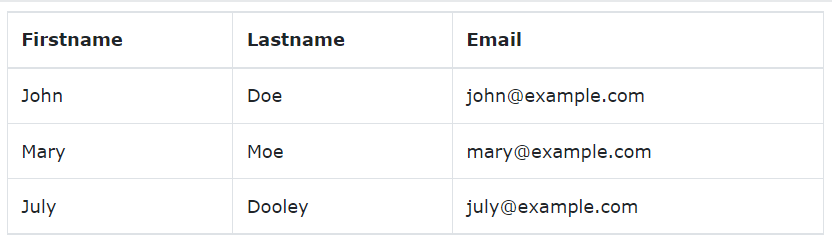
The .table-hover class adds a hover effect (grey background color) on table rows
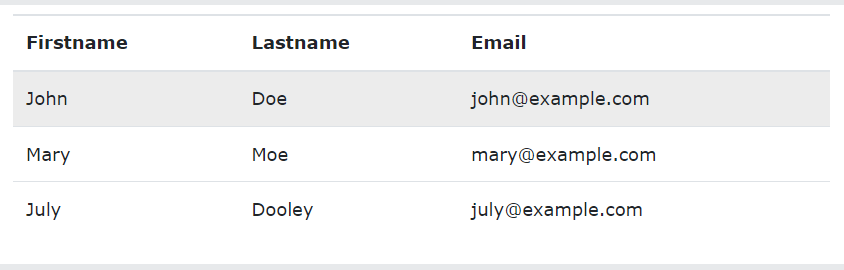
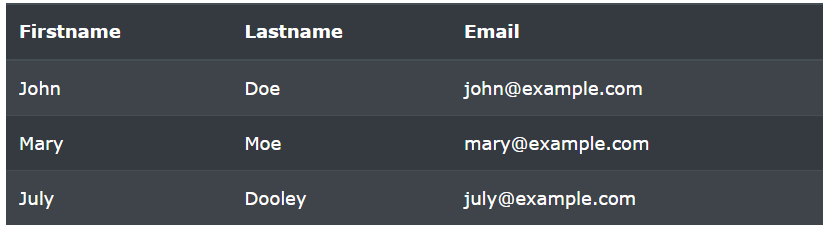
The .table-dark class adds a black background to the table:
Combine .table-dark and .table-striped to create a dark, striped table:
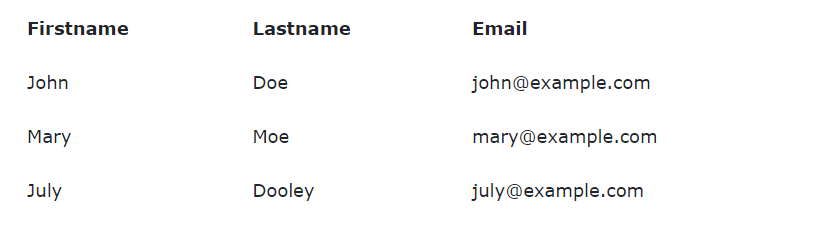
The .table-borderless class removes borders from the table:
The .table-sm class make the table smaller by cutting cell padding in half:

The .table-responsive class adds a scrollbar to the table when needed (when it is too big horizontally):

IIIb. Contextual Classes
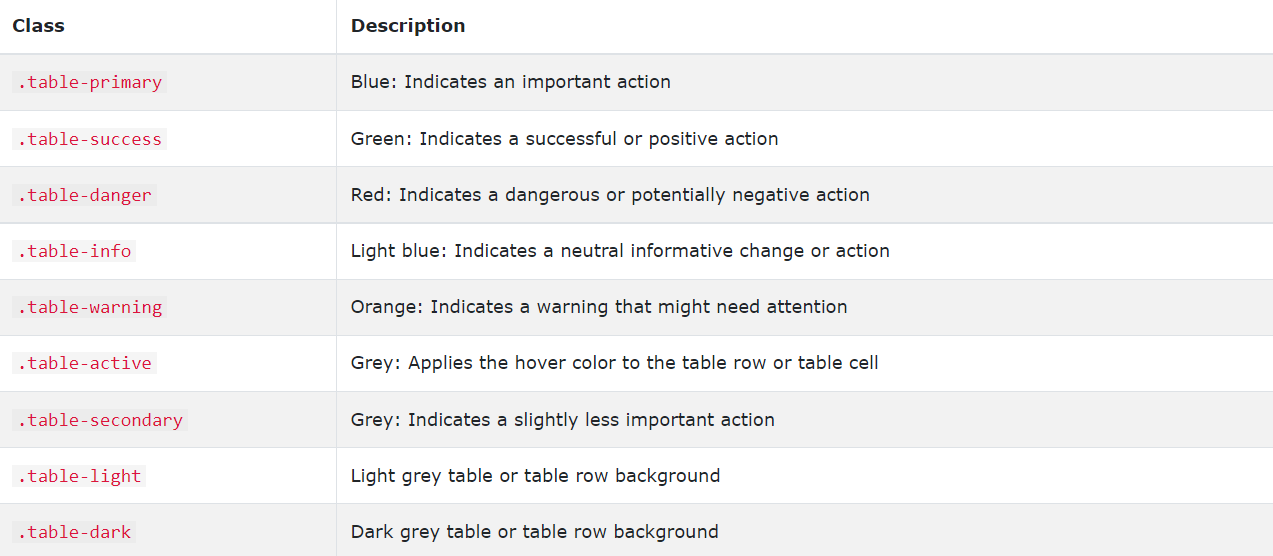
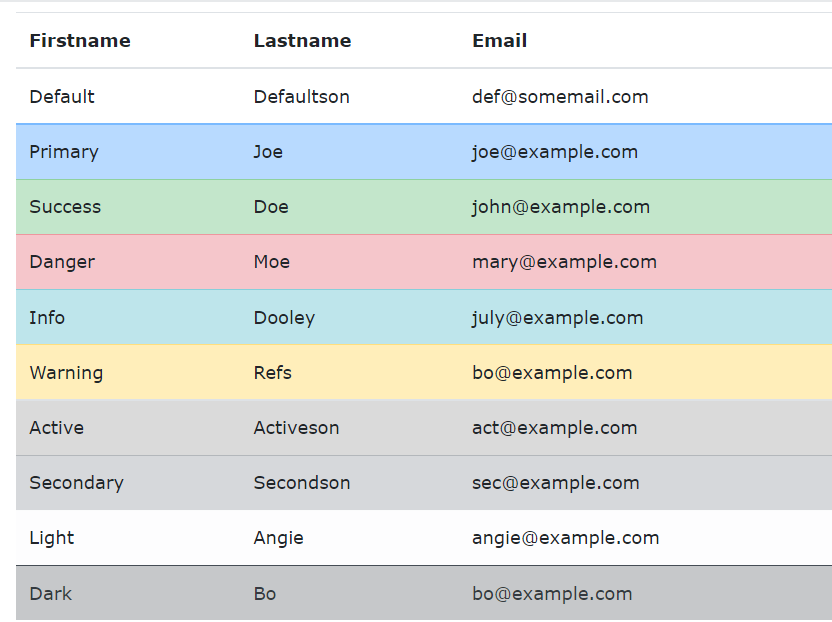
Contextual classes can be used to colour the whole table table, the table rows tr or table cells td.
The contextual classes that can be used are:
Lastly, we're going to learn about jumbotron!!!
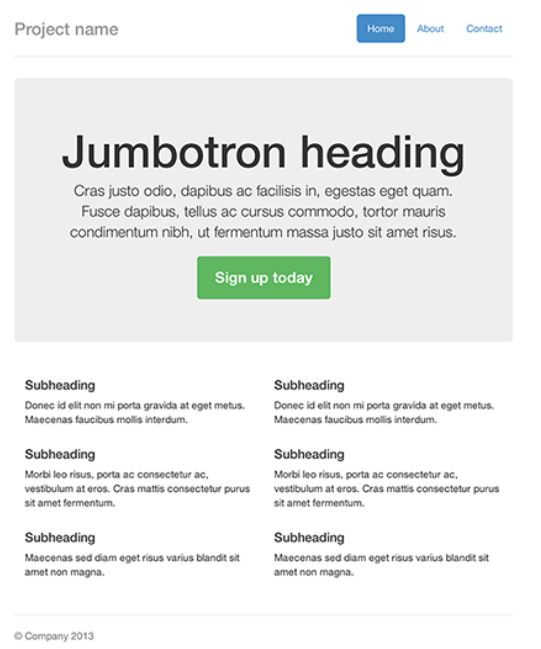
A jumbotron indicates a big grey box for calling extra attention to some special content or information.
Use a div element with class .jumbotron to create a jumbotron.
To create a full-width jumbotron without rounded borders, add the .jumbotron-fluid class and a .container or .container-fluid inside of it:
That's all for now!!
Thanks for reading! 🥰🥰
Stay tuned for more 🎉🎉